Sign in and account access
Use the email address registered in the app. Passwords are case-sensitive. If you cannot sign in or need password assistance, contact the recovery team and never send your password by email or text.
Get practical help with account access, case intake, device photos, shipping, messages, recovery quotes, and account controls.
Help by task
These steps reflect the current Denver Data Recovery iPhone app and mail-in recovery process.
Use the email address registered in the app. Passwords are case-sensitive. If you cannot sign in or need password assistance, contact the recovery team and never send your password by email or text.
Open Cases and choose New Case. Existing profile and shipping details are reused where appropriate, and you can review every field before submission.
During intake, choose Add Photo and select clear images of labels, ports, physical damage, or error screens. Photos stay attached to the case they describe.
After your intake is reviewed, the team provides packing instructions and a free FedEx label. If the label has not arrived, reply in the case or call support.
Use the Messages tab for case-specific questions and technician replies. Pull to refresh if you are waiting for a recent update. Call for urgent assistance.
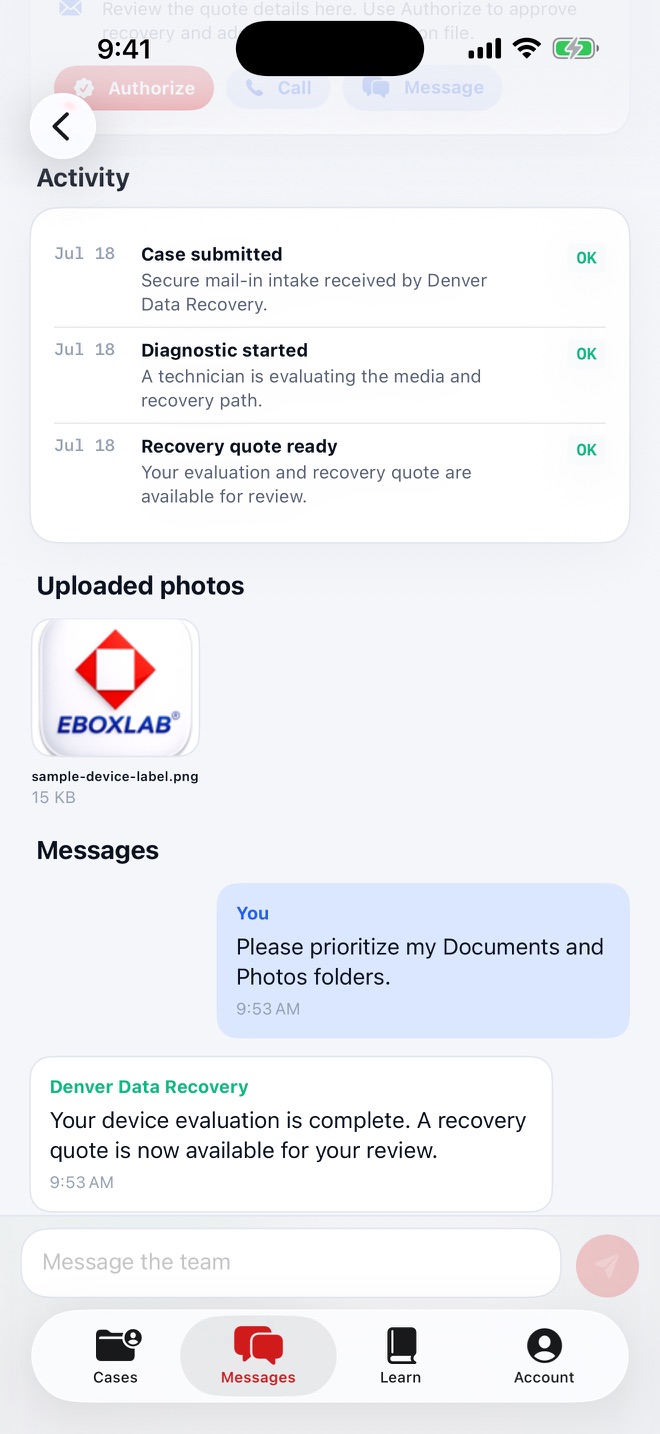
A quote appears after evaluation. The Authorize button opens Denver Data Recovery's secure web approval page, where authorization and payment-method details are handled.
Open Account to update your name, phone number, mailing address, shipping address, or password. Case-specific details remain available in the related case.
Open Account, then Security, Privacy & Deletion. Confirm the current password to submit a complete account-deletion request and sign out immediately.
Quick answers
For a case-specific answer, use Messages in the app or contact the lab directly.
A completed submission appears in the Cases tab with a Denver Data Recovery case number and Submitted status. If it does not appear after refreshing, contact support before submitting the same device again.
Submitted means the intake was received. Device in Lab confirms lab intake. Diagnostic covers evaluation and planning. Recovery means approved recovery work is underway. Delivered means return delivery or secure data handoff is complete.
Yes. Create a separate case for each device or media set so photos, messages, quotes, and status updates remain correctly associated.
No. The iPhone app displays quote information and opens Denver Data Recovery's existing secure web authorization page when you choose Authorize.
Include the account email, case number if applicable, iPhone model, iOS version, app version, what you expected, and what happened. A screenshot is useful, but remove unrelated private information first.
Stop using the affected device, avoid repair utilities or repeated power cycles, and call 720-222-0110. Continued use can overwrite or worsen recoverable data.
Contact the recovery team
Send your account email and case number when applicable. For technical app problems, include the iPhone model, iOS version, app version, the action you took, and the result you saw.
Do not send your password, complete payment information, or unrelated private data.
Standard support: Monday-Friday, 8 AM-7 PM Mountain Time. Emergency recovery assistance is available 24/7 by phone.
Review how information is handled or initiate deletion inside the app.